Inbox & Import Queue
Discovering movie and TV recommendations across chat threads, social media posts, or watchlists usually leads to manual typing and forgotten notes.
CineScope solves this with the Inbox—an offline-first review queue. You can paste unformatted text or upload up to 5 screenshots; CineScope automatically identifies the titles, matches their details, and loads them into Card View or List View for quick review.

How It Works
- Import: Paste text recommendations or pick up to 5 screenshots from your gallery.
- Match: CineScope detects movie and TV titles and matches them with posters, release years, and ratings.
- Save Locally: Candidate titles are saved to your Inbox queue on your device, automatically skipping duplicates already in your library.
- Review: Sort titles one by one in Card View with swipe gestures, or manage many at once in List View.
Use Case 1: Importing Text & Notes
When friends recommend titles in messaging apps or you copy a list of suggestions, paste the text directly into CineScope without any formatting.

Step-by-Step Walkthrough
- Open the Inbox tab from the bottom navigation bar.
- Tap the + Import button in the top toolbar to open the import modal.
- Select the Text or Notes segment.
- Tap Paste to insert text from your clipboard, or type directly into the field (supports up to 10,000 characters).
- Tap Find & Add Titles.
The import sheet closes immediately after tapping Find & Add Titles. A status badge appears in the top toolbar while your import runs in the background, so you can continue browsing the app without waiting.
Use Case 2: Multi-Screenshot Analysis
Recommendations often appear as images—a screenshot of a watchlist, a social story, or a list shared by a friend.
Step-by-Step Walkthrough
- Tap + Import in the top toolbar and switch to the Screenshot segment.
- Tap the upload area to open your device's photo gallery.
- Select up to 5 screenshots (PNG, JPEG, WEBP).
- Review the thumbnail strip and tap the close icon on any thumbnail you want to remove before processing.
- Tap Find & Add Titles.
Batch Processing
When multiple screenshots are submitted, CineScope processes them in sequence:
- Each screenshot is scanned for movie and TV titles.
- Found titles are matched with verified posters, genres, and ratings.
- Titles already in your Watchlist, Watched library, or Inbox are skipped automatically.
- When finished, an Import Complete summary shows total found titles, new additions, and skipped duplicates. Tapping View in Inbox opens List View directly.
Use Case 3: Reviewing Cards with Swipes
Card View makes reviewing imported titles quick with responsive swipe gestures.
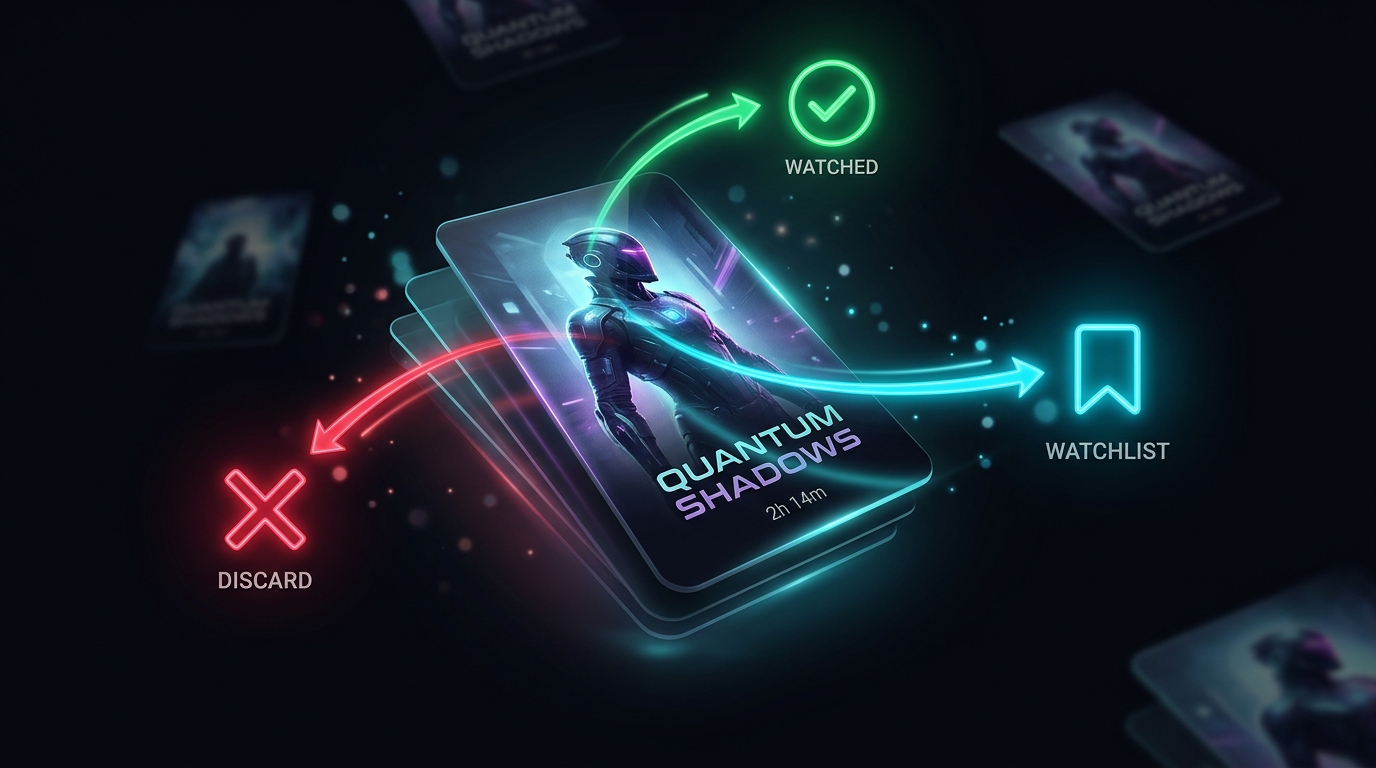
Directional Gesture Guide
| Gesture | Direction | Action | Description |
|---|---|---|---|
| Swipe Right | Right | Save to Watchlist | Moves the title directly into your Watchlist. |
| Swipe Left | Left | Discard | Removes the title from the queue without saving. |
| Swipe Up | Up | Mark as Watched | Moves the title directly into your Watched history. |
| Tap Title Area | Single Tap | Open Detail Page | Opens full synopsis, cast, trailers, and streaming providers. |
Visual Feedback
- Directional Badges: As you drag a card, clear badges (
WATCHLIST,DISCARD,WATCHED) highlight your chosen action. - Smooth Animations: Swiping off-screen animates smoothly with subtle haptic feedback.
- Instant Save: Every swipe saves immediately to your local library.
Use Case 4: List View & Safe Cleanup
For reviewing large queues or managing multiple titles at once, switch to List View using the view toggle in the header.
Multi-Select Actions
- Tap individual item checkboxes, or tap Select All to highlight the entire queue.
- Use the top-right action menu for one-tap bulk operations:
- Watchlist: Moves all selected titles into your Watchlist.
- Watched: Marks all selected titles as Watched.
- Discard: Prompts for confirmation before removing titles.
Accidental Deletion Protection
CineScope protects your unreviewed queue from accidental clearing:
- Clear All: Prompts a confirmation dialog showing the exact number of items to be removed.
- Bulk Discard Confirmation: Selecting multiple titles to discard always asks for confirmation first.
- Tapping Cancel keeps your items and current selection intact.